
Product Agent is currently in beta, and we’re seeking partners to help shape its future.
Page Layout
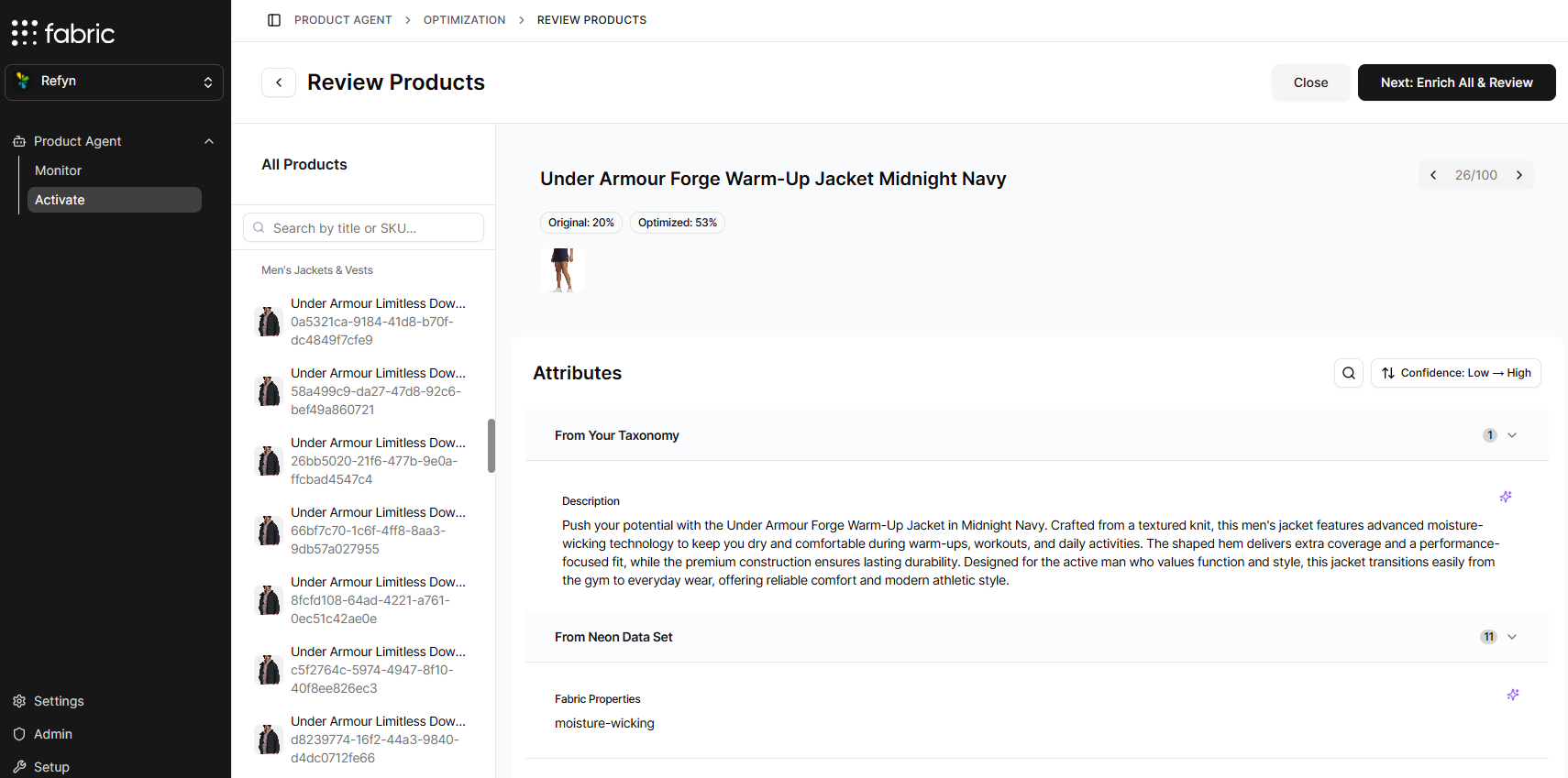
The Sampled Enrichment screen is divided into two main areas:- Product list (left panel): Displays all products included in enrichment. You can filter by category and select individual products to review.
- Product detail (main panel): Displays the enriched data for the selected product.
Attribute sources
Attributes are grouped into two sections to help you understand where each value comes from:- From Your Taxonomy: These attributes come from your existing product data. Product Agent may standardize or enhance these values to improve consistency and clarity.
- From Neon Data Set: These are attributes that Product Agent identifid as opportunities based on fabric’s data model and industry benchmarks. They represent important product details that may be missing from your current data but can improve discoverability, filtering, and AI readiness.
Enrichment status
Each piece of product data includes a status indicator to show how it was handled during enrichment:- New: Newly generated by Product Agent
- Updated: Modified from the source data
- Original: Unchanged from the source data
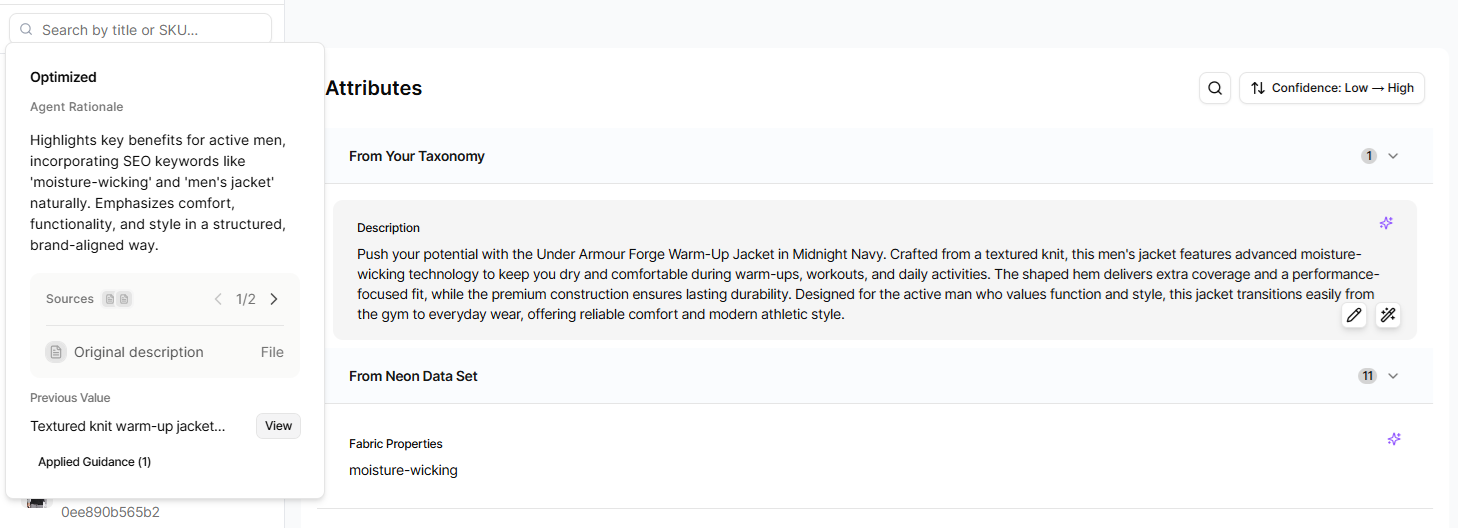
Enrichment insights
Hovering over a piece of product data displays additional context, including:- Agent rationale explaining why a value was generated, updated, or left unchanged
- Sources used to derive the value
- Attribute origin (for example, supplier data or AI-generated content)
Procedure
- Navigate through the sampled enrichment of your catalog and review Product Agent’s optimizations.
- (Optional) To make changes to Product Agent’s optimizations or the guidance that Product Agent uses when enriching your content, see Optional Procedures below.
- Click Next: Enrich All & Review.
Optional Procedures
The following procedures explain how to adjust optimizations in Sampled Enrichment, whether by editing a single product or providing guidance for future enrichments.Your edits and feedback help Product Agent learn your preferences and generate better results.
Regenerating AI content
The product description, attributes, FAQs, and meta data all support AI edits at the individual level. This allows you to use the Product Agent AI to regenerate content without manual edits or rewrites.- Mouse over a piece of product data and click the magic wand icon. The guidance window is displayed.
- In the text field, give the AI guidance on what you would like changed.
- Click Generate.
Editing a product’s title
- To change a product’s title, mouse over the title and click the pencil icon. The Edit Title window is displayed.
- In the Title field, enter the new title.
- In the Provide edit guidance field, provide a reason for the edit.
-
In the Scope field, choose whether the edit applies to:
- Only this product
- Every product with this attribute
- Click Save.
Editing an attribute
-
Mouse over the attribute and click the pencil icon.
The edit menu is displayed.

- Edit the attribute as required.
-
In the Scope field, choose whether the edit applies to:
- Only this product
- Every product with this attribute
- In the Guidance for the agent… field, provide a reason for the edit.
- Click Save.
Editing an FAQ
-
Mouse over the FAQ and click the pencil icon.
The edit menu is displayed.
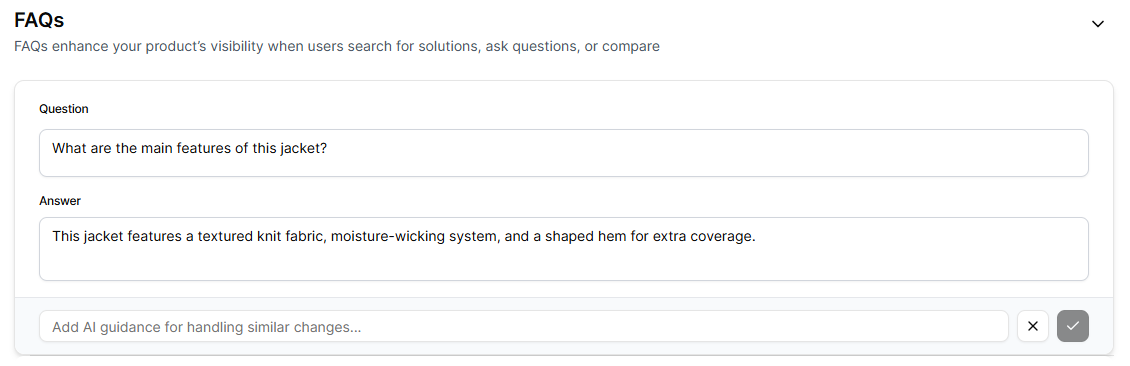
- In the Question field, edit the question.
- In the Answer field, edit the answer.
- In the Add AI guidance for handling similar changes… field, provide a reason for the edit.
- Click the checkmark icon.
Editing image alt tags
-
Mouse over an alt tag and click the pencil icon.
The Edit Alt Text window is displayed.
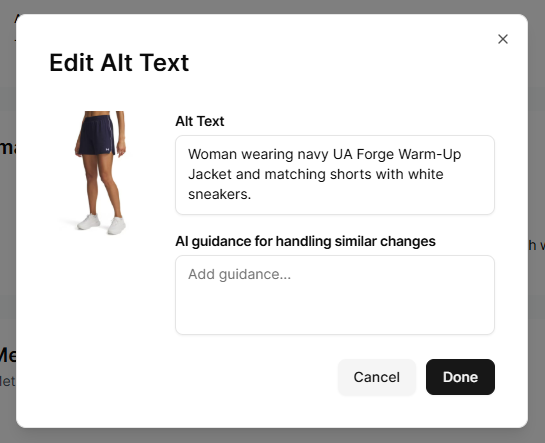
- In the Alt Text field, edit the alt tag as required.
- In the AI guidance for handling similar changes field, provide a reason for the edit.
- Click Done.
Editing meta data
- Mouse over the meta data and click the pencil icon. The edit menu is displayed.
- Edit the attribute as required.
- In the Meta Title field, edit the meta data.
- In the Guidance for the agent… field, provide a reason for the edit.
- Click the checkmark icon.