Product Agent is currently in beta, and we’re seeking partners to help shape its future.
- Browse the products and categories that have been uploaded.
- Search and sort by product name, category, or ingestion status.
- Confirm that your core product data is ready for enrichment.
Prerequisites
Provide your fabric Delivery Manager with two CSV files: one for your categories and one for your attributes. Your delivery manager will coordinate with you to ensure these files are uploaded and mapped.Product Information File Guidelines
Product information is uploaded through a CSV import. fabric recommends that you use the provided CSV template as a basis for your upload. It contains predefined column headers, some of which, such as SKU, category, breadcrumb, title, description, and images are required. However, the CSV template is set up for apparel, so there are a number ofattribute* columns that won’t apply to every merchant.
The
attribute* columns can be edited to fit the needs of your brand. For example, a furniture manufacturer would need attribute*height, attribute*length, and attribute*width. Procedure
- In the left menu, click Product Agent > Activate.
-
Do one of the following:
- To import products, click Import.
- To create an experiment using a CSV file, click Create Experiment, then select Via CSV Import.
If your products are already activated, you can skip this step by clicking Enrich Products and following the steps in Enrich Products. - (Optional) Click Sample CSV to download a sample file. The file is downloaded.
-
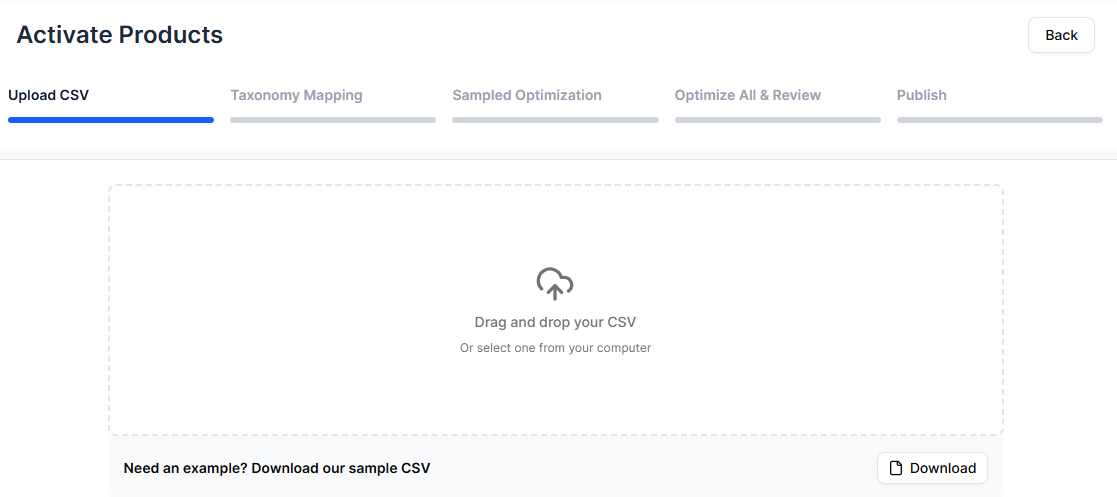
To import a CSV file, do one of the following:
- Drag and drop a file into the upload box.
- Click anywhere inside the upload box to select a file from your computer.
-
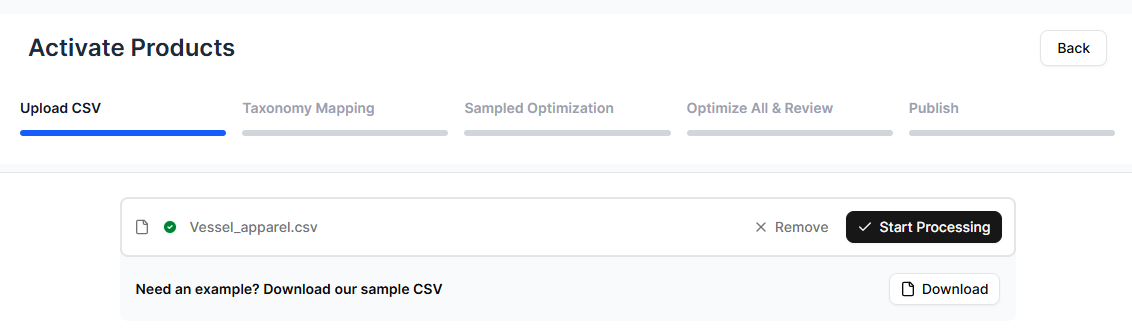
Click Start Processing.
Product Agent processes your upload. Depending on the size of the file, it may take some time.