
Product Agent is currently in beta, and we’re seeking partners to help shape its future.
CSV file guidelines
If you import attributes using a CSV file, the file should define the structure of your product attributes in a clear, consistent format. Each row represents a single attribute, including its display name, a machine-readable key, and the type of data it stores. This allows Product Agent to understand how product information should be structured and interpreted during enrichment. At a minimum, attribute definitions typically include:- attribute_name: the display name shown in Product Agent
- attribute_key: a standardized, machine-readable identifier
- description: a brief explanation of the attribute
- data_type: the type of value the attribute stores, such as text or number
Procedures
Importing attributes
- In the left menu, click Settings. The Product Agent Settings menu is displayed.
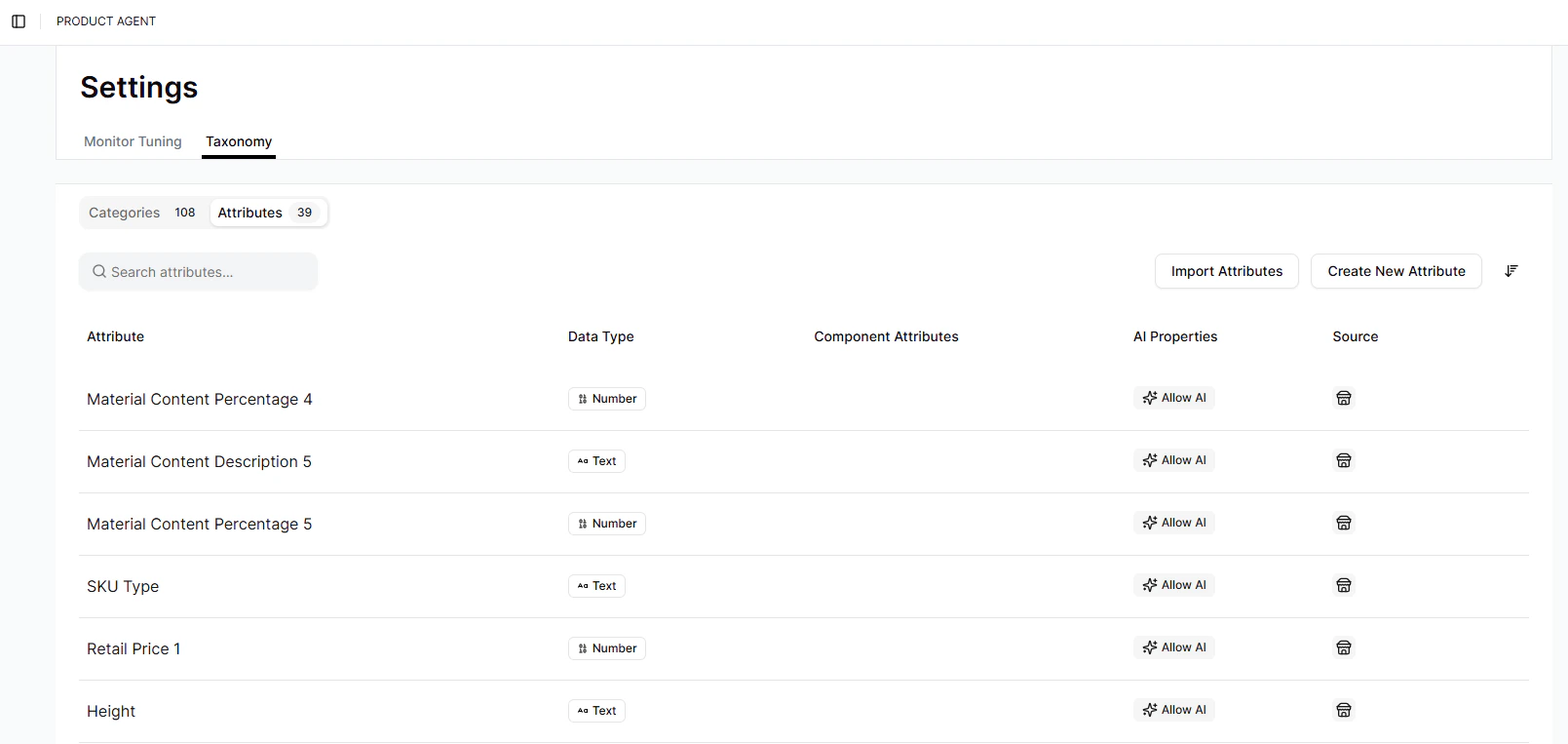
- Click Taxonomy. The Taxonomy tab is displayed.
- Click Attributes. The Attributes menu is displayed.
- To import attributes from a CSV file, click Import Attributes. The Import Attributes window is displayed.
-
To import a CSV file, do one of the following:
- Drag and drop a file into the upload box.
- Click Choose File to select a file from your computer.
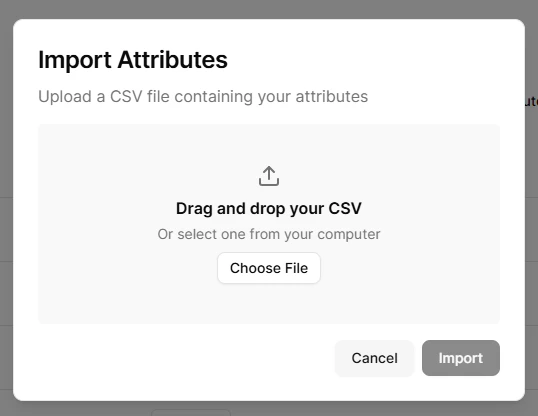
- Click Import.
Manual attribute setup
- In the left menu, click Settings. The Product Agent Settings menu is displayed.
- Click Taxonomy. The Taxonomy tab is displayed.
- Click Attributes. The Attributes menu is displayed.
- To create a new attribute, click Create New Attribute. The Create New Attribute window is displayed.
- In the Attribute name field, enter the name of the attribute.
- (Optional) In the Description field, enter a description for the attribute.
- In the Data Type field, select the type of value the attribute will store. For more information on data types, see the Taxonomy Overview.
- (Optional) To allow Product Agent to enhance or generate values for this attribute, click Allow AI Content.
-
(Optional) To provide additional guidance for AI-generated values, click Include AI Content Guidance.
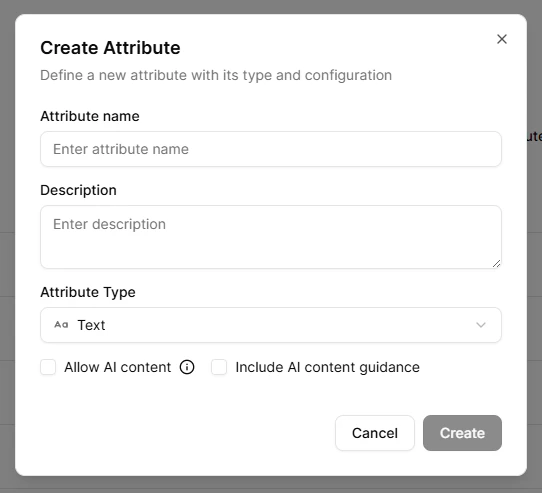
- Click Create.